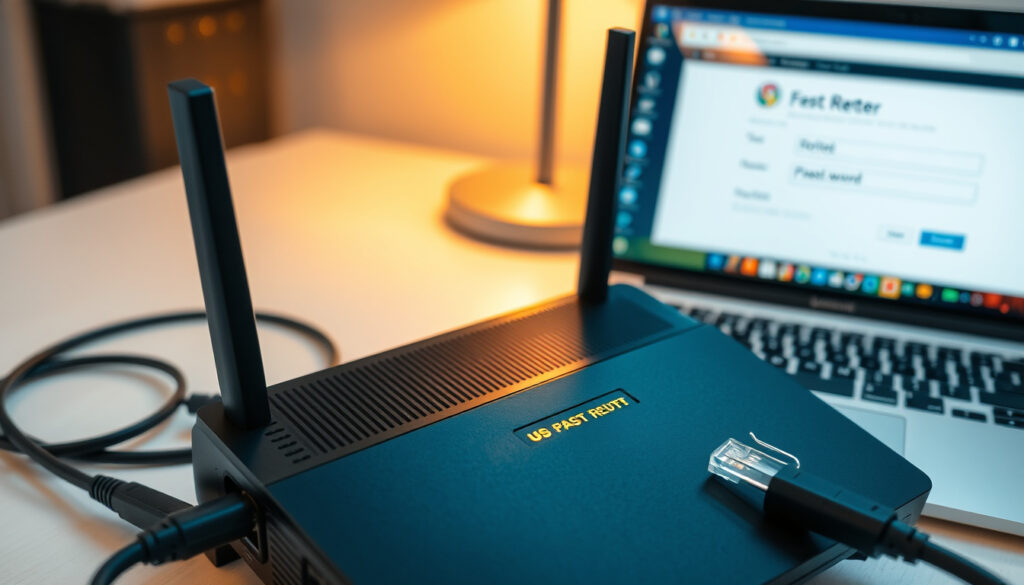
How to Reset a Router Password: Step-by-Step Guide
There’s a sinking feeling when you type what you think is your router password and get nothing but an error, whether you’ve forgotten the admin login or just need to change the Wi‑Fi key. This guide walks you through every scenario, from a hard reset to recovering your credentials, so you can get back online without the headache.
Common default router IP: 192.168.1.1 or 192.168.0.1 ·
Default username: admin (most routers) ·
Default password: admin or password (varies by brand) ·
Factory reset hold time: 10–30 seconds ·
Reset button location: Back or side panel
Quick snapshot
- Perform factory reset (TP‑Link Support FAQ)
- Use default credentials from label (ASUS Support FAQ)
- Check brand-specific recovery options (RouterHax)
- Log into admin panel (How‑To Geek guide)
- View wireless security settings (TP‑Link Support FAQ)
- Reset only if admin password also lost (Tom’s Guide)
- Access router settings via IP address (How‑To Geek guide)
- Update the pre‑shared key (TP‑Link Support FAQ)
- Reconnect all devices (BroadbandNow)
- Double‑check caps lock/typos (Tom’s Guide)
- Try default credentials after reset (TP‑Link Support FAQ)
- Consider password manager (RouterHax)
How do I reset my router password if I forgot it?
- Locate the reset button – Find the recessed pinhole on the back or side of the router.
- Perform a factory reset – Hold the button for 10–30 seconds until the power light blinks.
- Log in with default credentials – Connect to the default Wi‑Fi and use the sticker’s username and password.
If you’ve locked yourself out of the router’s admin panel, a factory reset is the only reliable way in. TP‑Link’s official support confirms that a forgotten router password cannot be retrieved or looked up — it must be reset.
Locate the reset button
- The reset button is almost always recessed — a pinhole on the back or side panel (TP‑Link Support FAQ).
- You’ll need a paperclip, a pin, or a pen tip to press it (Tom’s Guide).
- If you see a button labeled “WPS/Reset,” that’s the one — holding it longer triggers the reset, not WPS.
Perform a factory reset
- With the router powered on, press and hold the reset button for 10–30 seconds, depending on the brand (TP‑Link recommends about 10 seconds; PortForward suggests 30 seconds).
- Watch for the power light to blink or flash — that’s your cue that the reset is active (ASUS Support FAQ).
- Release the button and wait about 5 minutes for the router to reboot and restore its factory defaults (BroadbandNow).
Log in with default credentials
- After the reset, connect to the newly restored default Wi‑Fi network (name is on the router label).
- Open a browser and navigate to 192.168.1.1 or 192.168.0.1 (How‑To Geek).
- Enter the default username (usually admin) and the default password from the sticker or manual (TP‑Link Support FAQ).
A factory reset wipes all your custom settings: Wi‑Fi name, password, parental controls, and port forwards. The only data that stays is the router’s firmware. For anyone who has tweaked their network, the reset is fast — but the reconfiguration is the real work.
How do I manually change my router password?
If you already know your current admin password, there’s no need to reset anything. You can change both the admin password and the Wi‑Fi password right from the control panel.
Access the router admin panel
- Connect your computer or phone to the router’s network (via Ethernet or Wi‑Fi).
- Type the router’s IP address — typically 192.168.1.1 or 192.168.0.1 — into your browser’s address bar (How‑To Geek).
- Log in with your current admin username and password. If you’ve never changed them, check the router sticker for defaults.
Navigate to wireless or admin settings
- Look for a tab or section labeled Wireless, Wi‑Fi, or Security on the admin dashboard.
- On ASUS routers, the option to restore or save settings is under Administration → Restore/Save/Upload Setting.
- To change the admin password, look under Administration, System, or Management. On many TP‑Link models, it’s under System Tools → Administration.
Enter and save a new password
- Type a strong new password — at least 12 characters, mixing upper and lower case, numbers, and symbols.
- Click Save or Apply. The router may reboot to apply changes (TP‑Link Support FAQ).
- Once the Wi‑Fi password changes, every device that was connected will need to reconnect using the new key.
The pattern here: if you can log into the admin panel, password changes are a few clicks. The hard part is remembering the admin password — which brings us to recovery.
How can I recover my 192.168.1.1 username and password?
Before you reach for the reset button, there are a few ways to find or recover your login credentials without wiping everything.
Check the router sticker
- Most routers have a label on the bottom or back that lists the default IP address, username, and password (How‑To Geek).
- If you changed the password and forgot it, the sticker won’t help — but it’s the first place to check for defaults.
Look up brand-specific defaults
- TP‑Link, NETGEAR, D‑Link, and ASUS all publish default credentials in their support docs (TP‑Link Support FAQ; ASUS Support FAQ).
- The most common combo is admin / admin or admin / password.
- Some NETGEAR routers let you recover the password via security questions — a feature worth checking before resetting.
Use factory reset as a final option
- If no recovery option exists and you can’t find the credentials, a factory reset will restore defaults (Tom’s Guide).
- After reset, use the default login from the label or manufacturer site.
The default credentials on the sticker are your safety net. Anyone who has physical access to the router can see them. After you log in, change both the admin and Wi‑Fi passwords to something only you know. RouterHax recommends storing the new password in a password manager so you never get locked out again.
The takeaway: recover credentials first from the sticker or a connected device; only reset when those options fail.
What do I do if my router password is not correct?
An “incorrect password” message doesn’t always mean you forgot the credentials — it could be a typo, a caps lock issue, or you’re on the wrong login screen.
Verify you are using the correct login page
- Make sure you’re typing the router’s IP address directly into the browser, not a search engine. Common IPs: 192.168.1.1, 192.168.0.1, or 10.0.0.1.
- Avoid fake login pages — some third-party sites mimic router interfaces to steal credentials. Stick to the official IP (Tom’s Guide).
Check for typos and caps lock
- Router passwords are case-sensitive. “Admin” is not the same as “admin”.
- If you’re using a saved password in your browser, double-check that it hasn’t been auto-filled from a different site (How‑To Geek).
- Try typing the password manually in a text editor first, then copy it into the login field to catch typos.
Reset the router if all else fails
- If you’ve confirmed the IP and checked for typos but still can’t log in, a factory reset is the last option (TP‑Link Support FAQ).
- For Wi‑Fi password errors, check your computer’s saved network settings — you may still have the correct key stored on another device (How‑To Geek).
The pattern: most “incorrect password” errors are fixable without a reset; double-check the basics before resorting to a full wipe.
How do I find out what my router password is?
If you need the admin or Wi‑Fi password without resetting, there are three places to look.
Look on the router label
- The sticker on the router typically shows the default admin username and password, as well as the default Wi‑Fi network name and key (TP‑Link Support FAQ).
- If the sticker is worn or missing, check the original packaging or manual.
Check default password databases
- Manufacturer support pages list default credentials for every model (ASUS Support FAQ; TP‑Link Support FAQ).
- Third-party databases like RouterHax or PortForward also compile default logins for hundreds of models.
View saved passwords on connected devices
- On a Windows PC: go to Network & Internet → Wi‑Fi → Manage known networks → select your network → View Wi‑Fi security key.
- On a Mac: open Keychain Access, search for your Wi‑Fi network name, and double-click to reveal the password.
- On a phone: check Saved networks under Wi‑Fi settings (Android) or iCloud Keychain (iOS) (How‑To Geek).
The implication: if you still have a device that’s connected, you don’t need a reset at all. The Wi‑Fi password is likely already stored somewhere you can retrieve it.
Confirmed facts
- Factory reset restores default login credentials on all routers (TP‑Link Support FAQ; Tom’s Guide).
- Most routers have a physical reset button that is recessed and requires a pinhole tool (ASUS Support FAQ).
- Default IP addresses are typically 192.168.1.1 or 192.168.0.1 (How‑To Geek).
- A factory reset wipes all custom settings including Wi‑Fi name, password, and port forwards (BroadbandNow).
What’s unclear
- Whether all routers offer password recovery without resetting (varies by brand — TP‑Link states it’s not possible).
- Exact default passwords for every model (check label or manufacturer site).
- Whether the default username is always “admin” on all routers (varies by brand).
- Whether the reset button is always recessed on every model (some have external buttons).
“A factory reset is the only way to regain access if you’ve forgotten the login password.”
— TP‑Link Support FAQ
“Press and hold the Reset button on your router for about 30 seconds to reset it to factory default settings.”
— Tom’s Guide
“To perform a factory reset, gently press and hold the Reset button on the back or side of the device with a straightened paperclip.”
— TP‑Link Support FAQ
For anyone facing a locked router, the choice is simple: either retrieve the password from a connected device or the sticker, or commit to a full factory reset. The trade-off is clear — convenience now versus time spent reconfiguring later.
Relatert lesning: Hva er gjenopprettingsmodus? Guide for Android og iOS · Hev/senk pult: Guide og sammenligning av beste modeller
youtube.com, highspeedinternet.com, 192-168-1-1ip.mobi, wikihow.com, 192-168-1-1.wifirepeater.org
Frequently asked questions
Will resetting my router delete my internet and Wi‑Fi settings?
Yes. A factory reset restores the router to its original factory state, which clears your Wi‑Fi name (SSID), Wi‑Fi password, admin password, port forwards, and any parental controls. Your internet connection settings (like PPPoE credentials) may also be erased if they were saved in the router. You’ll need to reconfigure everything after the reset (TP‑Link Support FAQ; BroadbandNow).
How often should I change my router password?
Security experts recommend changing your router’s admin password every 3–6 months and your Wi‑Fi password at least once a year, or immediately after a security incident like a breach or if someone unauthorized gains access. RouterHax suggests saving the new password in a password manager to avoid lockouts.
Can I change my Wi‑Fi password without logging into the admin panel?
No. Most routers require you to log into the admin panel to change the Wi‑Fi password. Some newer routers have companion mobile apps (like TP‑Link Tether or NETGEAR Nighthawk) that let you change the password without entering the web interface — but you still need to know the current admin password to log into the app (TP‑Link Support FAQ).
What if my router does not have a reset button?
Very rare in consumer routers, but if yours lacks a physical reset button, you can often factory reset via the admin panel under Administration → Backup & Restore or System → Factory Reset. If you can’t access the panel either, check the manual for a pin-hole reset that may be unlabeled (ASUS Support FAQ).
Is it safe to keep using the default router password?
No. Leaving the default admin password makes your router an easy target for attackers. Anyone who knows the default (e.g., “admin”/”admin”) can log in and change settings, redirect traffic, or steal data. Change it immediately after your first login (TP‑Link Support FAQ; RouterHax).
How do I change the router password from my mobile phone?
Open your phone’s browser and navigate to the router’s IP address (e.g., 192.168.1.1). Log in with the admin credentials. Look for a Wireless or Security tab to change the Wi‑Fi password, or Administration for the admin password. Many manufacturers also offer a dedicated app that simplifies this process (TP‑Link Support FAQ).
What is the difference between an admin password and a Wi‑Fi password?
The admin password is used to log into the router’s settings page to change configurations. The Wi‑Fi password (also called the network security key or passphrase) is what devices use to connect to your wireless network. They are separate and can be set to different values (TP‑Link Support FAQ; How‑To Geek).
For anyone staring at a locked router, the decision is straightforward: dig out the default credentials from the sticker or support site, or commit to a factory reset and reconfiguration. The real cost isn’t the reset button — it’s the time you’ll spend rebuilding your network afterward. Plan for that, and you’ll be back online in 15 minutes.
Related reading: Hva er gjenopprettingsmodus? Guide for Android og iOS — recovery mode shares conceptual ground with factory resets and password recovery procedures.
Flere relaterte innlegg
 Slaget om Stalingrad – Tidslinje, tap og betydning
 Levi’s Ribcage Straight Ankle: Passform, sammenligning med 501
 Odd-Magnus Williamson – Skuespiller, komiker og manusforfatter | Biografi
 Azzaro The Most Wanted Parfum: Duft, Noter & Anmeldelse
 Volvo EX30 pris 2025: Core, Plus og Ultra
 Suser i Sivet i Tolvsrød – alt du trenger å vite
 Anine Bing genser – kjøpguide, priser og tips
 Prolaps i korsryggen: Symptomer, behandling og tips